
Reliable video converter, editor, and compressor for daily tasks.

Master 4K/1080p: 5 Fast HD Converters Today with Steps

Posted by Aira Lesly Escoto to Video Converter Jan 30, 2026
High-definition content is the standard today. You may want to upscale a mobile clip for social media, and you need a quality converter to have the best final result. Since there are many HD converters today, the challenge is choosing the right platform for the job. Therefore, this post dives deeper into the 5 best HD video converters available, from robust desktop software to online tools. The following tool ensures your videos always stay crystal clear.
Guide List
4Easysoft Total Video Converter - High Speed AI HD Converter Handbrake - Open-Source HD Converter CloudConvert - Secure Online HD Converter with Cloud Storage FreeConvert - High-Capacity Online HD Converter Online-Convert.com - Rich Customization HD Converter Comparison Table of 5 HD Converters4Easysoft Total Video Converter - High Speed AI HD Converter
4Easysoft Total Video Converter uses advanced AI technology to transform videos to 4K and higher losslessly. This HD video converter and editors covers over 600 formats, which is ideal for converting lower-resolution footage regardless of formats like MP4, MOV, AVI, MKV, etc. Aside from its simple conversion, it also offers a built-in editor to trim, rotate, crop, merge, apply effects, and more, making it perfect for anyone needing an editor and converter in one streamlined package.
- Pros
- Offers lossless AI quality; faster conversion speed.
- Cons
- Full features are limited to the free version.
Transform footage between HD formats like MP4, AVI, MOV, and MKV.
Fully customize your media by adjusting resolution, frame rate, and encoders.
Save time by converting a library of videos simultaneously without quality loss.
Faster and more reliable process thanks to advanced acceleration technology.
100% Secure
100% Secure
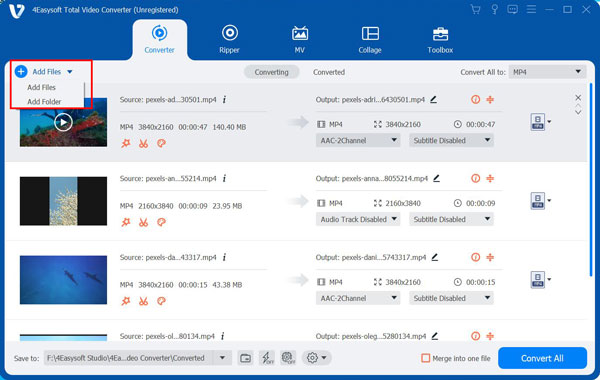
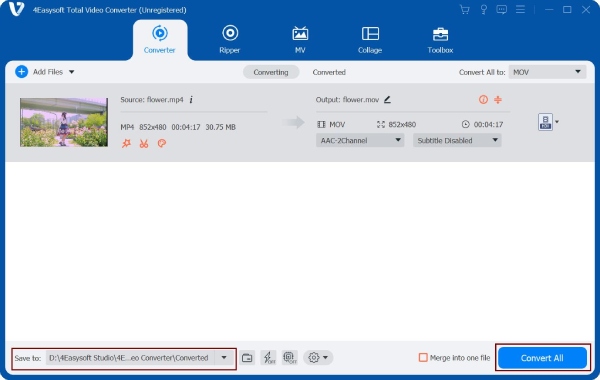
Step 1Open 4Easysoft Total Video Converter. Click the Add Files button to add your video.
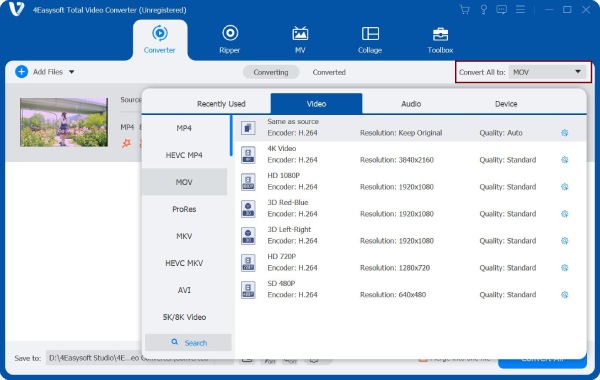
Step 2Unfold the Format dropdown menu. Then, navigate to the Video tab and choose your desired HD container, like MP4.
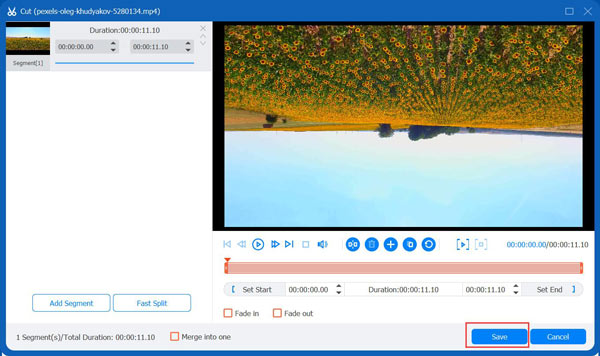
Step 3Decide on a destination folder to store your files and rename it. If your video needs polish, you can use the Edit or Trim buttons to enhance the visual quality or cut unwanted segments.
Step 4After that, click the Convert All button to start the high-speed encoding process. Later, go to the output folder to view your newly created HD videos.
100% Secure
100% Secure
Handbrake - Open-Source HD Converter
Still the gold standard for open-source high-resolution video converter options, Handbrake offers unmatched technical control for advanced users. It has built-in device presets optimized for standard or HD conversions. Also, it excels at resizing, cropping, and recovering old footage to modern HD standards. You can convert and edit HD videos with Handbrake for free.
- Pros
- Completely free and open-source; supports H.265 and AV1.
- Cons
- Its interface can be intimidating; no batch merging of clips
- 1.Launch Handbrake now. Drag your video file into the window, then pick a preset such as 1080p30 or another General preset.
- 2.Afterward, head to the Video tab, make sure the encoder is set to H.264 or H.265 for HD.
- 3.Then, select your save path and click the Start Encode button.

CloudConvert - Secure Online HD Converter with Cloud Storage
Meanwhile, CloudConvert is a highly versatile free HD converter platform that has support for over 200 formats and prioritizes data security. Here, you can convert HD files from cloud storage, saving you the time of downloading them first to your drive. Plus, it provides settings to adjust resolution and bitrate.
- Pros
- Uses ISO 270001 security; works very well with a storage device for easy file management.
- Cons
- Has a daily limit of 25 conversions for free users; the upload speed depends on your internet connection.
- 1.Once inside the CloudConvert website, click the Select File button to upload your video file.
- 2.Then, choose your target format like MP4.
- 3.If you wish to, click the Settings button to set the HD resolution.
- 4.At last, click the Convert button to process the file in the cloud.

FreeConvert - High-Capacity Online HD Converter
Another online HD converter is FreeConvert, a service that offers a massive 1GB file limit for free. It comes with Advanced Options where you can fine-tune the video codecs, screen resolution, and aspect ratios to keep the HD integrity.
- Pros
- Huge 1GB free file limit; 256-bit SSL security; batch processing is supported.
- Cons
- Free tier is ad-supported; its process can be slow for large files.
- 1.Inside the FreeConvert main page, click the Choose Files button to upload your video file.
- 2.Select MP4 as your output format.
- 3.After that, click the Settings button to choose 1080p as the resolution.
- 4.Click the Apply Settings button and then Convert to MP4.

Online-Convert.com - Rich Customization HD Converter
A robust web solution, Online-Convert.com has specialized device converters for HD playback on certain hardware, like iPhones. It is one of your reliable and feature-rich HD converter options if you want complete control without installing any software.
- Pros
- Pre-made device presets; deep customization.
- Cons
- Cluttered interface with ads; file size limits to the free version.
- 1.From the Online-Convert.com site, go to the Video Converter section, and choose your preferred format.
- 2.There, drag your file into the green upload box.
- 3.Then, scroll down to Optional Settings to set your resolution to 1080p.
- 4.Click the Start button to create a HD video.

Comparison Table of 5 HD Converters
| HD Converter | Type | File Size Limit for Free | Maximum Video Resolution | Supported Formats |
| 4Easysoft Total Video Converter | Desktop | Limited | 4K/UHD | MP4, MOV, WMV, AVI, MKV, and more |
| Handbrake | Desktop | Unlimited | 4K/UHD | MP4, MKV, WebM |
| CloudConvert | Online | 1 GB | 4K | MP4, AVI, MKV, FLV, WebM, MOV, etc. |
| FreeConvert | Online | 1 GB | 4K | MP3, MKV, WebM, AVI, MOV, etc. |
| Online-Convert.com | Online | 100 MB | 1080p/4K | MP4, AVI, MKV, MOV, WebM, 3GP |
Conclusion
Selecting a reliable HD video converter is the most crucial step to guarantee high-definition content across different devices and platforms. Whether you want complete control from a tool like Handbrake, or the cloud-based convenience of CloudConvert, and more, each of the top 5 solutions offers a unique way to upscale video to HD video resolution. If you want to enjoy the best of both worlds, use 4Easysoft Total Video Converter. With its lightning-fast speed, AI upscaling, and broad format support with a straightforward interface, it gives you the best experience that ensures your HD videos always look their best.
100% Secure
100% Secure