
Burn Xbox game disc to digital files to save the video/audio files.

3 Ways to Rip and Transfer DVD to iPhone (Commercial & Homemade DVDs)

Posted by Paula Pailaga to Rip DVD Feb 02, 2026
Ripping DVDs to an iPhone is the best way to enjoy watching your favorite DVD movies anytime and anywhere using your iPhone. But how exactly will you rip a DVD to an iPhone? Well, you only need to use a DVD ripper tool to help you digitize the DVD and store and play it on your iPhone. However, not all those ripper tools can provide the best results! Thus, this post selects the 3 best tools on the market for ripping DVDs to iPhone! See each of them below.
Guide List
What Is the Best Format to Rip DVD to iPhone? The Best Way to Rip DVD to iPhone with High Quality How to Rip DVD to iPhone for Free Using Handbrake Steps to Rip DVD to iPhone with WinX DVD Ripper How to Put DVD Movies to iPhone for Easy Playback FAQsWhat Is the Best Format to Rip DVD to iPhone?
Firstly, learn about the supported iOS formats before ripping a DVD to your iPhone. All the listed formats below are acceptable, and you can choose the desired ones according to your needs.
• Video Formats: MP4, H.264, M4V, MOV, MPEG-4, etc. MP4 (H.264/H.265) is the most compatible format for DVD to iPhone conversion. It is suggested to convert a DVD to an MP4 video in 720p or 1080p. The bitrate can start from 1500 kbps to 4000 kbps. The proper FPS can be 24 FPS or 30 FPS.
• Audio Formats: MP3, AAC, M4A, WAV, AIFF, and more. The MP3 format with AAC codec is the default setting for most Apple devices
• Image Formats: JPEG, JPG, GIF, TIFF, PNG, BMP.
The Best Way to Rip DVD to iPhone with High Quality
Why choose: You can bypass all DVD protections and convert protected DVDs to iPhone-compatible formats at 30× faster speed.
The first thing this post would like to introduce is how to rip DVDs to iPhone using the professional 4Easysoft DVD Ripper. This tool lets you rip DVDs to 500+ formats, including, of course, the formats supported by iPhone (MOV, MP4, M4V, etc.). This tool lets you rip DVDs to 500+ formats, including, of course, the formats supported by iPhone (MOV, MP4, M4V, etc.). This tool also supports device presets that let you directly rip DVDs to various devices, including iPhones (from iPhone SE to iPhone 14). Aside from those output formats, this tool also offers great ripping speed! It simultaneously rips DVD contents at 30 times faster ripping speed, all thanks to its GPU acceleration technology. Furthermore, this tool ensures a lossless DVD ripping operation, allowing you to enjoy the same quality of your DVD even after it is digitized.
Offer output tweaking options that allow you to maintain and further enhance output quality.
Customize the DVD before ripping it by adding subtitles, improving its looks, and more.
Support ripping various DVD types, including DVD-R, DVD+R, DVD-ROM, and more.
Allow you to rip those DVDs from different regions and with copy protections efficiently.
100% Secure
100% Secure
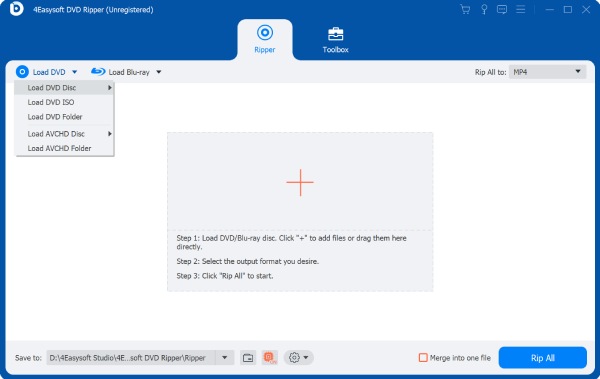
Step 1After installing and launching the 4Easysoft DVD Ripper, insert the DVD into an internal or external disc drive. Then, on the tool's main interface, click "Load DVD", choose "Load DVD Disc", and select the disc you inserted earlier.
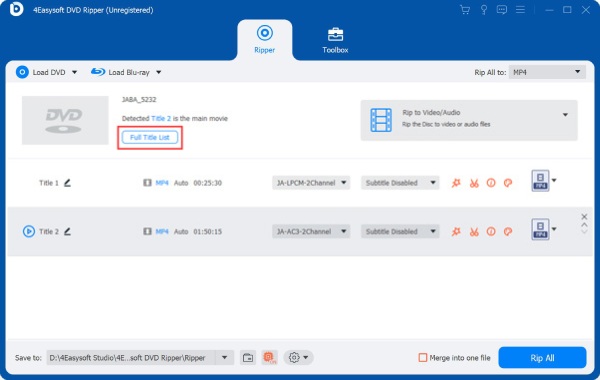
Step 2Next, click the "Full Title List" button, and from the list of titles, select the one you wish to rip by ticking its checkbox. Once done, click "OK" to save your selection.
Step 3Then, click the "Rip All to:" dropdown button on the right corner and select the "Video" tab. From the list of options on the left, choose whether you want to rip your DVD into MP4 or MOV.
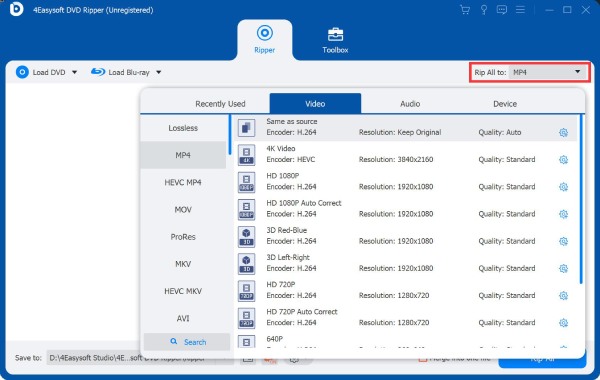
Tip: You can also directly rip your DVD to your iPhone, based on the model of iPhone you are using. Just click the "Device" tab, select "Apple" on the left, and select an iPhone model from the list of options on the right.
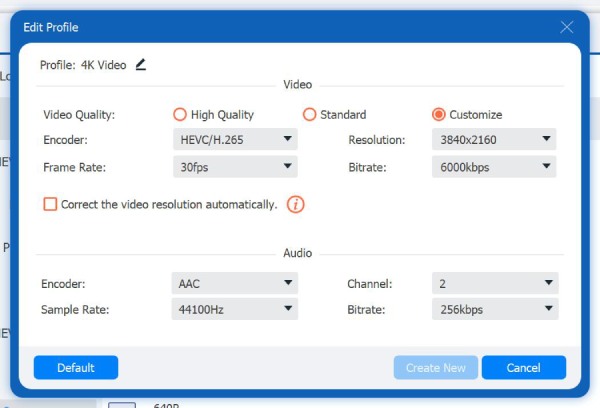
Step 4Once you have selected an output format, click the "Custom Profile" button corresponding to the quality option you chose earlier. Then, in the "Edit Profile" window, you can adjust the quality, encoder, frame rate, and other settings. Don’t forget to click the "Create New" button once done.
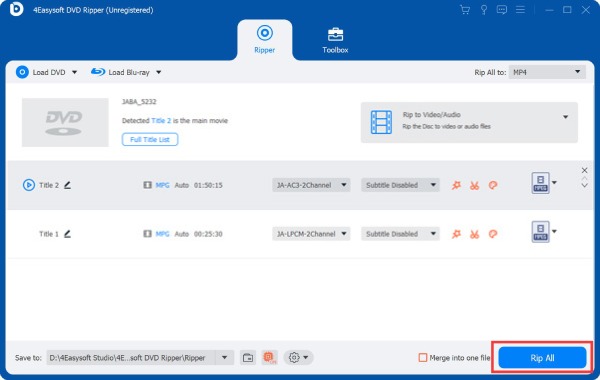
Step 5Once you have finished the setups, click the "Rip All" button located in the lower right corner to initiate the ripping operation. And that's how you rip DVDs to iPhone using this professional DVD ripper tool!
How to Rip DVD to iPhone for Free Using Handbrake
Why choose: Rip unencrypted DVDs to MP4 for free. However, HandBrake cannot bypass DRM protection and rip protected DVDs without third-party libraries. HandBrake cannot preserve DVD menus after ripping.
Another tool you can use to rip a DVD to an iPhone is Handbrake. This tool is an open-source, multi-platform video transcoder that also enables you to rip Blu-ray and DVDs to an iPhone efficiently. However, it only supports a few output formats, and from those formats, you can only choose DVD to MP4 since iPhones do not natively support MKV and WebM. Despite that, Handbrake supports presets for Apple that will effectively optimize the output’s video quality. Here’s how to use this one:
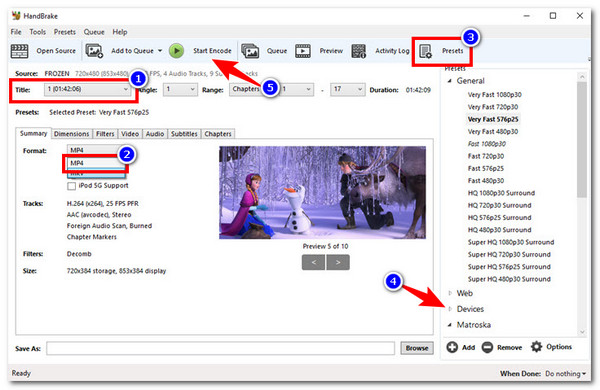
Step 1Install and launch the Handbrake tool on your computer and insert the DVD you wish to rip into an internal or external disc drive. Then, under the "Source Selection" section, select the inserted disc once it shows up.
Step 2Next, click the "Title" dropdown button and choose the DVD content you wish to rip. Then, select "MP4" from the list of "Format", click the "Presets" dropdown button, access the options under "Devices", and choose an "Apple" preset.
Step 3Once done, click the "Start Encode" button at the top of the tool’s interface to begin ripping the DVD.
Steps to Rip DVD to iPhone with WinX DVD Ripper
Why choose: Bypass common copy protections from DVDs, including CSS, Region Code, RCE, and more. So you can rip a DVD to iPhone-compatible formats. You can rip DVD to MP4 for free up to 5 minutes. Later, you need to upgrade to the full version.
The last tool you can use to rip DVDs to an iPhone is WinX DVD Ripper. Unlike Handbrake, WinX DVD Ripper is not an open-source ripper tool; however, it offers a free version that is sufficient to support your ripping needs. This tool supports over 350 output formats, including popular device presets such as iPod, iPhone, and Apple TV. Moreover, it can keep 98% of the original quality of the DVD content. Now, if you wish to try this one, here are the steps you must follow:
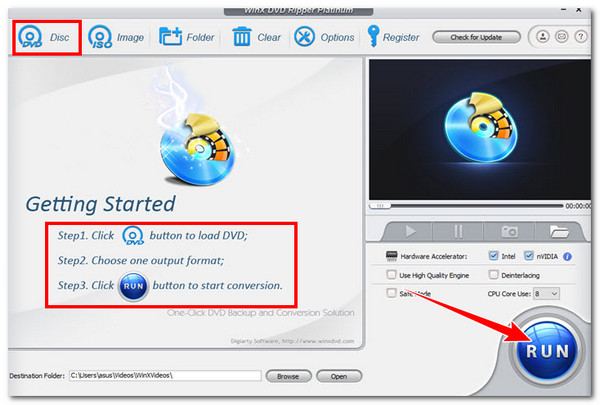
Step 1Install and run WinX DVD Ripper on your computer, then insert the DVD into an external or internal disc drive. Then, click the "Disc" tab at the top-left corner. Once the output formats appear, click the "Apple Device" button and select the model of your iPhone.
Step 2Then, click the "Browse" button and choose a file folder destination. Next, click the "Run" button on the tool’s main interface to flip the DVD. And that’s how you use this tool to rip DVDs to iPhone.
How to Put DVD Movies to iPhone for Easy Playback
After converting DVD to iPhone videos, it is time to transfer those movies to your iPhone for easy watching. There are many online and offline ways to do so. You can check the following summaries to transfer videos from a computer to an iPhone.
Use 4Easysoft iPhone Transfer to Move Digitized DVD Movies to iPhone
4Easysoft iPhone Transfer is your one-stop iPhone data organizer and transfer. You can select, edit, organize, convert, preview, and move over 20+ iPhone data types safely. The original file structure and data quality will not be influenced. So if you also want to transfer contacts, messages, photos, and other files in bulk from and to iPhone flexibly, click the Free Download button below.
100% Secure
100% Secure
Finder/iTunes: Transfer DVD Movies from Computer to iPhone
Just connect your iPhone to your computer using a Lightning USB cable. Later, open iTunes (on Windows) or Finder (on Mac) to get DVD movies into your iPhone. However, you may encounter file format restrictions (like MP4 or MOV) and compatibility glitches.
AirDrop: Transfer DVD to iPhone on Mac
It is quick to send small videos from a Mac to an iPhone using AirDrop. Though there is no maximum file size limit, you had better not send large videos with AirDrop to an iPhone in case of long waiting times.
FAQs
-
Why does HandBrake show 'No valid source found' while ripping a DVD?
Because this DVD is copy-protected or has physical damage (dirt or scratches). During this time, you can use 4Easysoft DVD Ripper to convert encrypted DVDs to iPhone videos instead.
-
The DVD videos stutter on the iPhone. What can I do?
Re-encode and reduce the video bitrate to 2 to 4 Mbps. If the video choppy problem still exists, you can check and reduce the export settings manually.
-
Why are DVD movies not playing on iPhone?
Make sure you convert the DVD to iPhone-compatible formats. If not, you can convert videos to MOV, MP4, or M4V formats manually.
Conclusion
To summarize, this post has taught you how to rip DVDs to iPhone in three easy steps. Through these methods, you can digitize DVD content and watch it anytime, anywhere on your iPhone. Among those featured options, the 4Easysoft DVD Ripper offers the best DVD-ripping services. With this tool's high ripping speed, ability to preserve original content quality, and wide range of output formats compatible with iPhone, you can achieve an efficient ripping operation. Start using this tool, and don't forget to share it with your friends!
100% Secure
100% Secure