4Easysoft Mac DVD CreatorMac DVD Creator

Burn All Format Videos to DVD/Folder or ISO Files

Burn any video to DVD/Blu-ray discs. 4Easysoft Mac DVD Creator supports all disc types, such as DVD-5, DVD-9, DVD-R, DVD+R, and more.

DVD DVDs ios Files
Create DVD
Create DVDs

4Easysoft Mac DVD Creator can burn any video to DVD discs, such as MP4, MKV, MOV, and more. It supports all disc types, including DVD-5 (4.7GB), DVD-9 (8.5GB), DVD-R, DVD+R, DVD-RW, DVD+RW, DVD-ROM, DVD-RAM, DVD-DL, and others.

Burn an IOS
Customize ISO Files

It serves multiple purposes, such as burning shared memories onto discs as gifts for friends or permanently preserving favorite movies on discs. It also supports burning videos from various devices into ISO files, including smartphones or camcorders. Videos are typically saved in compressed formats with a maximum resolution of 720p.

Edit DVD Videos

Edit the Burned DVD Video

Support merging or splitting videos to create chapters. Additionally, you can trim, crop, add music, add foreign language subtitle files, and apply unique video filters.

Customize the Menu

Custom Playback Menu

Offering a variety of themed templates. You can also customize backgrounds, buttons, music, and other elements to create a unique DVD menu.

High-quality Output

High-Quality Burning Output

When burning camera videos or 1080HD movies to DVDs/ISO files, select the “High” option to preserve the original high resolution and sharp details.

Support NTSC/PAL Standard

Support NTSC/PAL Standards

In addition to burning videos to DVDs/folders, it supports both NTSC and PAL formats. You can configure it for smooth playback on compatible TVs or DVD players.

Burn All Types of Video Formats to DVD/ISO

Whether it's camera footage, downloaded movies, or recorded content, 4Easysoft Mac DVD Creator makes it easy to burn them to DVD/ISO.

Burn All Types of Videos

4Easysoft Mac DVD Creator supports burning videos in all mainstream formats to DVD discs and ISO files. This makes it easier to preserve videos captured on mobile phones/HD cameras, movies downloaded from the internet, and audio/video recordings made on your computer. Before permanently preserving your precious memories on DVD, check the supported formats below.

Input Formats Standard Video: MP4, 3GP, AVI, DV, FLV, MOD, MJPEG, MKV, MPEG, M4V, MOV, RMVB, TS, WMV, ASF. HD Video: HD MP4, HD MPG, HD MOV, HD WMV, HD TS, HD MTS, HD M2TS, HD TRP, HD TP. Audio: MP3, M4A, AC3, WMA, WAV, FLAC, AAC, OGG, M4R, MP2, etc. Photo: JPG, PNG, BMP, TIFF, GIF.
Output Formats DVD disc/folder; ISO files.

Rich Built-in Editing Tools for Adjusting DVDs on Mac

4Easysoft Mac DVD Creator also offers a range of basic editing features, such as cropping, rotating, and trimming DVDs, adding background music and foreign-language subtitles, and adjusting the contrast and color tone of DVD videos.

  • Trim any unwanted sections and mark specific timestamps.
  • Adjust the video aspect ratio to fit different device screens.
  • Rotate or flip videos horizontally/vertically.
  • Select preset filters or adjust DVD video brightness/contrast/saturation/hue.
  • Add images or text as watermarks and adjust transparency.
  • Supports adding SRT, ASS, or SSA subtitle files to DVD videos.
Rich Built-in Editing Tool

Merge and Split DVD Videos to Create Different Chapters

4Easysoft Mac DVD Creator can merge multiple videos into a single chapter or split a video into various chapters as needed. This allows you to jump directly to specific sections like ceremonies or wedding highlights. Additionally, the software offers thumbnail settings, enabling you to verify content accuracy through preview images quickly.

Merge Videos Split Videos
Menu Menu Menu Menu Menu

Multiple Theme Templates for DVD Menu Design

We offer a variety of preset templates for themes such as birthdays, holidays, and weddings, making it easier for you to create unique DVD menus. Additionally, you can add custom menus featuring backgrounds, music, and buttons. Click here to preview more templates.
3 Steps to Burn Videos to DVD/Blu-ray

1

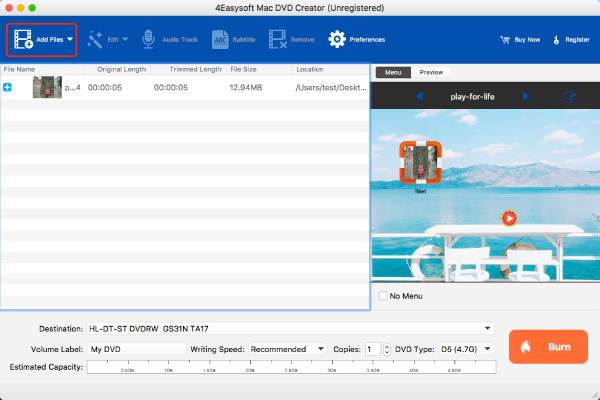
Add the desired videos from your Mac, such as MP4, MOV, MKV, AVI, FLV, TS, WMV, etc.

2

Edit and trim videos, then customize the menus for your DVD/Blu-ray discs.

3

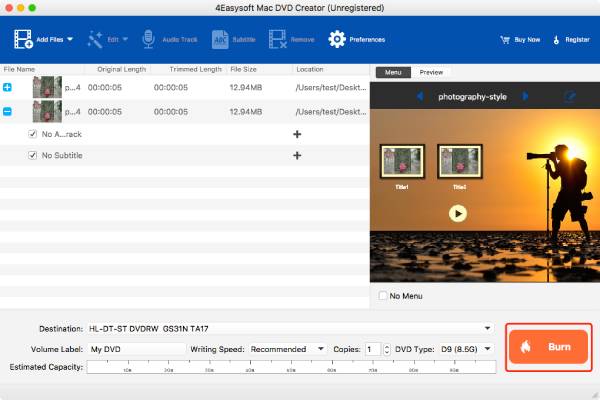
Select the TV format and storage path, then begin creating the DVD/Blu-ray video.

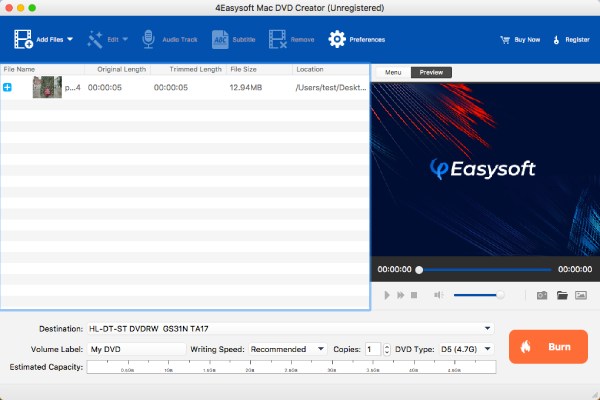
Add Files to Burn Preview the Created DVD Burn Video to DVD

We are Highly Trusted

Olivia

Olivia

This software makes DVD creation on Mac very straightforward. I edited multiple MP4 clips, customized the menu layout, and burned them to a DVD for a client presentation without any hassle.

Stars
Leona

Leona

The editing tools in 4Easysoft Mac DVD Creator help me a lot. I used it to burn family travel videos to a DVD with a custom chapter menu.

Stars
Rosalie

Rosalie

It works well for organizing long videos. I added chapters and a custom menu, then burned tutorial videos to DVD for offline viewing.

Stars
Bernard

Bernard

The video editing and DVD menu features are solid. I used it to convert and burn home videos to DVD with a themed menu, and the final result looked great. I'm delighted with it.

Stars

More Solutions You May Need

DVD Creator

4Easysoft Mac DVD Creator

Burn MP4, MKV, and More Video Formats to DVD/ISO with Editing Features